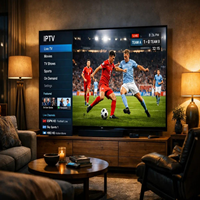
How to Improve IPTV Streaming Quality and Stop Buffering
If you enjoy watching live TV, sports, movies, or series through an IPTV service, a smooth streaming experience can make a big difference. Nobody wants to deal with a frozen screen, constant buffering, poor picture quality, or sudden interruptions during an important match or favorite show.
IPTV streaming quality depends on several factors, including your internet connection, streaming device, Wi-Fi signal, IPTV player, and the quality of the IPTV service you are using. In some cases, a few simple changes can make streaming much smoother.
In this guide, we will explain how to improve IPTV streaming quality, reduce buffering, and enjoy a better viewing experience on Smart TVs, Firestick, Android devices, and other compatible platforms.
What Causes IPTV Buffering?
Before fixing buffering problems, it helps to understand why they happen.
IPTV buffering occurs when your device cannot receive enough video data quickly enough to continue playing the stream. When this happens, the video pauses while the player loads more content.
Several things can cause IPTV buffering, including:
- Slow internet speeds
- Weak Wi-Fi signals
- Network congestion
- Too many devices using the same connection
- Outdated streaming devices
- Poor IPTV player settings
- An overloaded IPTV server
- High-resolution streams requiring more bandwidth
- Problems with your home network
The good news is that many of these problems can be fixed with a few simple steps.
1. Check Your Internet Connection
Your internet connection is one of the most important factors affecting IPTV streaming quality.
Even if your internet package has a high advertised speed, your actual connection can vary depending on network traffic, Wi-Fi strength, distance from the router, and other devices connected to your network.
Before changing anything else, run an internet speed test on the device you use for IPTV.
For regular HD streaming, a stable connection is important. If you want to watch 4K IPTV streaming, you generally need more bandwidth because 4K video requires significantly more data.
The important thing is not only speed. Connection stability and consistency matter too.
2. Use an Ethernet Connection When Possible
Wi-Fi is convenient, but a wired Ethernet connection can often provide a more stable connection for streaming.
If your Smart TV, Android TV box, or streaming device has an Ethernet port, consider connecting it directly to your router.
A wired connection can help reduce:
- Wi-Fi interference
- Signal drops
- Connection fluctuations
- Network instability
This can be particularly helpful when watching high-quality live TV or 4K IPTV streaming.
If Ethernet is not practical, don’t worry. You can still improve Wi-Fi performance by placing your router in a better location.
3. Improve Your Wi-Fi Signal
If you use IPTV over Wi-Fi, the location of your router matters.
Try to keep your router in an open and central location instead of placing it inside a cabinet or behind large objects.
Walls, furniture, electronic devices, and long distances can weaken your wireless signal.
For better IPTV streaming, try these simple steps:
- Move the router closer to your streaming device.
- Keep the router away from large electronic appliances.
- Avoid placing the router inside cabinets.
- Use the appropriate Wi-Fi band for your device.
- Consider a Wi-Fi extender if your home has weak coverage.
A stronger Wi-Fi signal can make live TV streaming more consistent.
4. Restart Your Router
Sometimes the simplest solution works.
If IPTV suddenly starts buffering, restart your router and allow it a few minutes to reconnect.
A router restart can help refresh the connection and resolve temporary network problems.
You can also restart your IPTV device or Smart TV. This clears temporary system issues that may affect streaming performance.
A quick restart should always be one of the first troubleshooting steps before making complicated changes.
5. Close Other Apps and Downloads
Your IPTV device may not be the only thing using your internet connection.
If someone is downloading large files, playing online games, watching another high-resolution video, or using multiple streaming services at the same time, your available bandwidth may decrease.
This can result in IPTV buffering.
For a better streaming experience, pause unnecessary downloads and close apps that are not being used.
If several people share the same internet connection, consider scheduling heavy downloads for another time.
6. Choose the Right Video Quality
Higher video quality usually requires more bandwidth.
For example, a 4K stream requires more data than an HD stream. If your internet connection is struggling, switching from 4K to HD may improve stability.
This doesn’t mean you should always use lower quality.
Instead, choose a resolution that matches your:
- Internet connection
- Device
- Display
- Network stability
If your connection supports it, 4K IPTV streaming can provide excellent picture quality. But a stable HD stream is usually better than a 4K stream that constantly buffers.
7. Keep Your Streaming Device Updated
Using an outdated Smart TV, Firestick, Android box, or IPTV player can sometimes affect performance.
Software updates may include:
- Performance improvements
- Bug fixes
- Security improvements
- Compatibility updates
- Better app stability
Check your device settings regularly for available updates.
If you are using IPTV for Smart TV, make sure your TV software and IPTV application are updated.
The same applies to IPTV for Firestick and Android streaming devices.
8. Clear Your IPTV App Cache
Many streaming apps store temporary files in their cache.
Over time, a large cache can sometimes contribute to app performance problems.
If your IPTV application is slow, freezing, or behaving strangely, check whether your device allows you to clear the app cache.
After clearing the cache, restart the application and try streaming again.
The exact process depends on your device and IPTV player.
9. Choose a Reliable IPTV Player
Your IPTV service is only part of the streaming experience. The IPTV player you use can also affect how smoothly content plays.
A good IPTV player should be easy to navigate and compatible with your device.
Depending on your platform, you may find IPTV players designed for:
- Smart TVs
- Firestick
- Android TV
- Android smartphones
- Tablets
- Other compatible streaming devices
If one player frequently crashes or struggles with playback, you can check whether another compatible player performs better on your device.
10. Restart the IPTV App
If the stream suddenly becomes slow or starts buffering, completely close the IPTV application and open it again.
Sometimes the app may experience a temporary playback issue.
You can also restart your streaming device before opening the IPTV app again.
This simple step can resolve minor problems without changing your internet settings.
11. Check Other Devices on Your Network
Your home network may have many connected devices.
Smartphones, laptops, tablets, gaming consoles, security cameras, Smart TVs, and other devices can all consume bandwidth.
If IPTV buffering happens mainly during busy periods, check which devices are using the network.
Reducing unnecessary network activity can free up bandwidth for live TV streaming.
12. Avoid Unnecessary VPN Connections
A VPN can sometimes reduce internet speed because your traffic travels through an additional server.
If you are using a VPN and experiencing IPTV buffering, you can test the connection without it, provided doing so is appropriate for your situation and complies with the relevant terms and laws.
If the stream becomes smoother without the VPN, the VPN connection may be contributing to the issue.
However, never use a VPN as a way to bypass legal restrictions or access content you are not authorized to watch.
13. Consider Your Internet Service
Sometimes the problem is not your IPTV device or application.
Your internet provider may experience congestion, especially during busy evening hours.
If your connection repeatedly slows down at certain times, monitor your internet performance throughout the day.
If your internet speed drops significantly during peak hours, contact your internet provider and ask about the issue.
A stable internet connection is essential for reliable IPTV streaming.
14. Use a Modern Streaming Device
Older devices may struggle with modern high-resolution streams.
If your Smart TV, Android box, or streaming device is several years old, its hardware may have limitations.
A newer device can offer:
- Better processing performance
- Faster app loading
- Improved video decoding
- Better support for high-resolution content
- More responsive navigation
For people who regularly watch 4K IPTV streaming, device capabilities are particularly important.
15. Match Your IPTV Quality to Your Internet
One of the most common mistakes is choosing the highest possible video quality without considering the available bandwidth.
Think of your internet connection as a road.
Standard-definition video needs a smaller road, while HD and 4K video require more space for data to travel smoothly.
If your connection is limited, choosing a lower resolution can improve stability.
Once your internet connection improves, you can try higher-quality streams again.
IPTV Buffering vs Internet Buffering
It’s also important to understand that not every buffering problem comes from your IPTV service.
There are generally two broad possibilities.
Internet or Home Network Problem
If other online services are also slow, the issue may be your internet connection.
For example, you may notice:
- Slow websites
- Video buffering on other platforms
- Poor download speeds
- Weak Wi-Fi
- Connection drops
In this situation, troubleshooting your network should be your first step.
IPTV-Side Problem
If normal internet services work well but only one IPTV stream is buffering, the issue may be related to that particular stream, server, or service.
Try another available channel or stream if your service provides one.
If multiple channels are affected while everything else on your internet connection works normally, contacting your IPTV provider’s support team may be appropriate.
How to Improve IPTV for Smart TV
If you use IPTV for Smart TV, there are several things you can do to improve performance.
First, make sure your TV is connected to a strong network.
If possible, use Ethernet. Otherwise, place your router where the TV can receive a strong Wi-Fi signal.
Next, remove applications you no longer use and keep your TV software updated.
Restarting the TV occasionally can also help clear temporary performance issues.
For older Smart TVs, an external streaming device may sometimes provide a faster and more responsive IPTV experience.
How to Improve IPTV for Firestick
Firestick users can also take several steps to improve IPTV performance.
Start by checking your Wi-Fi connection. Your Firestick should have a strong and stable connection to the router.
You can also:
- Restart the Firestick
- Keep Fire OS updated
- Close unused applications
- Clear the IPTV app cache
- Restart your router
- Reduce other network activity
- Check your streaming resolution
These basic steps can help create a smoother IPTV for Firestick experience.
Why 4K IPTV Streaming Needs More Bandwidth
4K video contains significantly more visual information than standard HD video.
That means your device needs to receive and process more data.
If your connection is unstable, a 4K stream may buffer more frequently than an HD stream.
For the best 4K IPTV streaming experience, pay attention to three things:
Internet: Use a fast and stable connection.
Device: Make sure your TV or streaming device supports 4K playback.
Network: Use Ethernet or a strong Wi-Fi connection whenever possible.
When these factors work together, 4K streaming can provide sharper details and a more immersive viewing experience.
Quick IPTV Buffering Fix Checklist
If your IPTV is buffering right now, try these steps in order:
- Check your internet speed.
- Restart your router.
- Restart your IPTV device.
- Close unused apps.
- Check your Wi-Fi signal.
- Try an Ethernet connection.
- Clear the IPTV app cache.
- Update your device software.
- Try a lower video resolution.
- Test another channel or stream.
- Check whether other devices are using bandwidth.
- Contact your IPTV provider if the problem continues.
These steps cover many of the most common causes of IPTV buffering.
Why a Stable IPTV Service Matters
Even with a strong internet connection and a modern device, the quality of your overall IPTV experience can depend on the service you choose.
A reliable IPTV provider should aim to provide stable streaming, good channel organization, device compatibility, and responsive customer support.
At Eagle IPTV, the goal is to provide a convenient streaming experience across compatible devices, including Smart TVs, Firestick, Android devices, and other supported platforms.
Before choosing any IPTV subscription, it’s always worth checking the available features, supported devices, streaming quality, pricing, and service terms.
Final Thoughts
IPTV buffering can be frustrating, but it doesn’t always mean that your IPTV service is the problem.
Your internet connection, Wi-Fi signal, streaming device, IPTV player, video quality, and network usage can all affect IPTV streaming quality.
Start with the basics. Check your internet connection, restart your router and device, improve your Wi-Fi signal, close unnecessary apps, and make sure your software is updated.
If you are watching 4K content, make sure your internet connection and device can handle the higher bandwidth requirements.
Whether you use IPTV for Smart TV, IPTV for Firestick, Android, or another compatible device, a stable network and properly configured equipment can make a noticeable difference.
With the right setup, you can enjoy smoother live TV streaming, better picture quality, and a more reliable IPTV experience.
Frequently Asked Questions
Why does my IPTV keep buffering?
IPTV can buffer because of slow or unstable internet, weak Wi-Fi, network congestion, device performance, app issues, or problems with a particular stream. Checking each factor can help identify the cause.
What internet speed is best for IPTV?
The required speed depends on the video quality and network conditions. HD streaming needs less bandwidth than 4K streaming. A stable connection is just as important as raw download speed.
How can I stop IPTV buffering on Firestick?
Restart your Firestick and router, check your Wi-Fi signal, close unnecessary apps, clear the IPTV app cache, update Fire OS, and try reducing the video quality if your connection is struggling.
Does Ethernet improve IPTV streaming?
It can. Ethernet generally provides a more stable connection than Wi-Fi and can reduce wireless interference and signal fluctuations.
Why does IPTV work on some channels but buffer on others?
Different channels or streams can use different servers and bandwidth levels. If only specific streams buffer while others work normally, the issue may be related to those particular streams rather than your entire internet connection.
Is 4K IPTV better than HD IPTV?
4K can provide sharper and more detailed images, but it requires more bandwidth and compatible hardware. If your internet connection is unstable, HD may provide a smoother experience.
Can a VPN cause IPTV buffering?
A VPN can sometimes reduce connection speed because your traffic is routed through another server. If buffering begins after enabling a VPN, compare the connection with and without it, where legally and technically appropriate.
Leave a Reply